
Translated subtitles for webinars, courses and video
AI Translator shows translated subtitles on your screen while you watch a webinar, an online conference, a course or a video in another language. It listens to the audio playing on your computer, so there is nothing to install in your browser or on the platform, and both recognition and translation run on your machine.
- Works with
- Anything that plays sound on your computer
Browsers, media players, course platforms, webinar tools - Extra installs
- None besides the app itself
No browser extension, no plugin, no sign-in account - Languages
- English, 中文, 日本語, 한국어, Tiếng Việt
You choose the language you want to read - Long sessions
- Ran for 5 hours 23 minutes without an error
Mac M4 Pro, macOS, ad-hoc signed release build, tested once
When the content is great but not in your language
Online learners
Courses and lecture videos in English, Chinese, Japanese or Korean that you want to follow right now, without waiting for someone to translate them.
Conference followers
Webinars and online conferences with speakers from abroad, where you only listen and do not need to speak.
Video watchers
Technical videos, talks and interviews whose built-in captions do not come in your language.
It does not depend on the player or platform
Because AI Translator captures the sound playing on your computer, it does not depend on the website or platform you are watching. Press Start, then play the video; translated subtitles appear on a floating bar above the player window. We have tested it with videos in a browser, but not with each individual course or webinar platform.
On macOS you grant the System Audio Recording permission once; the microphone is not used. See how to grant the permission.
The original and the translation at once
The Show the original text above the translation option in Settings › Subtitles (on by default) puts the source sentence in small type right above the translation. It suits language learners and anyone who wants to double-check a term.
- Font size 14–48 px, 5 text colors, 5 background colors, adjustable opacity
- Scroll up to reread earlier sentences with the mouse wheel or a shortcut; the Latest button returns you to the live line
- Pause that ends a sentence ranges from 50 to 800 ms: when you are watching a video and do not need instant feedback, raise it so sentences get cut less often

Watch a whole long event without interruptions
One continuous session of 5 hours 23 minutes (an English lecture video playing in a browser) finished with 6,019 segments, no errors, and a median delay of 0.48 seconds. Conditions: a Mac M4 Pro, macOS, an ad-hoc signed release build, run once; it was not a formal acceptance test. A separate 2-hour stability test did not restart any process either.
Quota for long events.
Minutes count only translated speech, not silence, and sentences already in the language you want to read are not counted, but a passage you rewind and hear twice is. Free gives 30 minutes a day for a 10-day trial, so a long webinar needs Monthly (50 hours per 30 days) or Yearly (unlimited). See pricing.
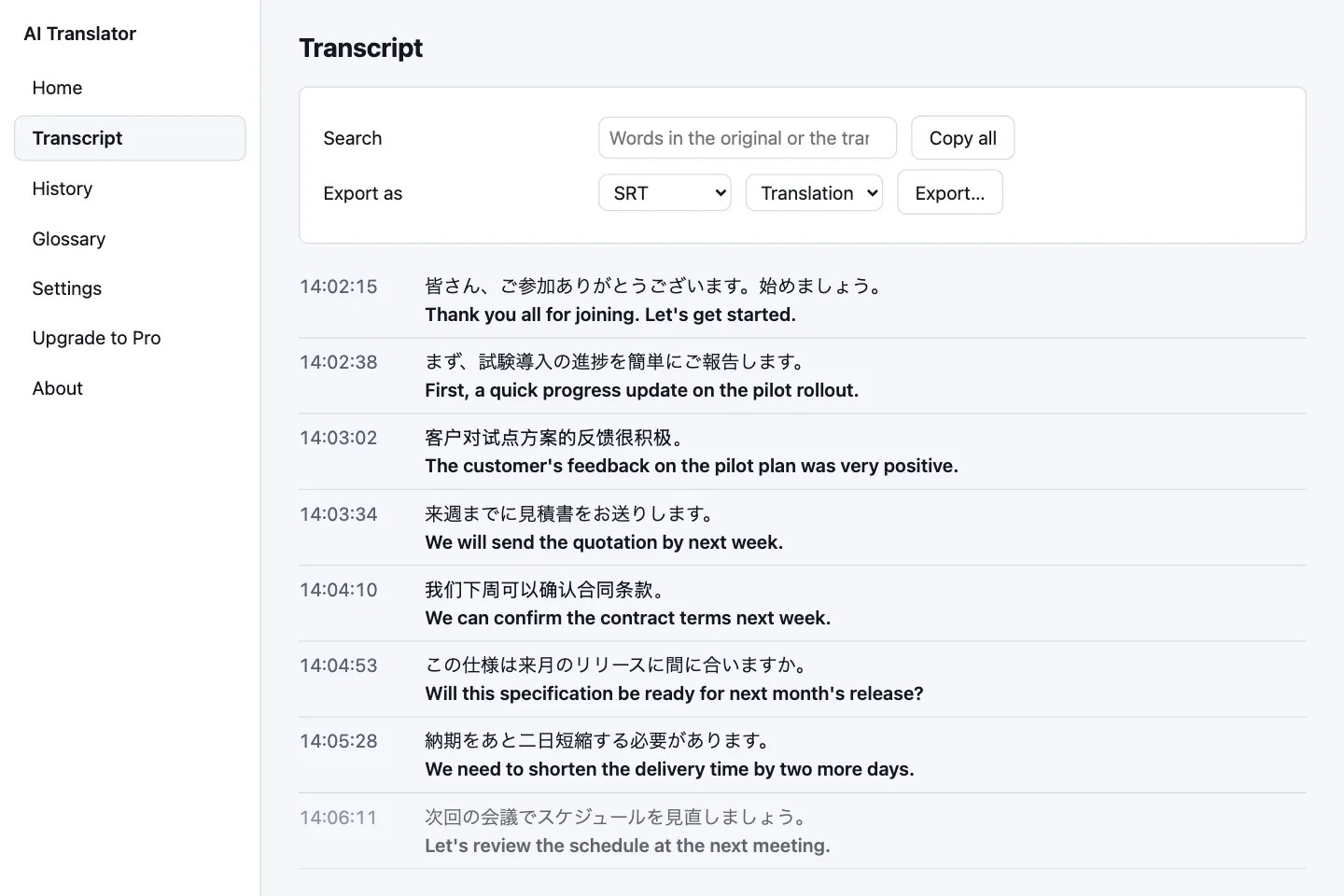
Keep the transcript to review later
- Copy all of the transcript (time, original, translation) works on every plan
- Exporting to TXT, SRT or Markdown and saving history are Pro features
- TXT and Markdown record the clock time of each sentence; SRT records time from the moment you pressed Start, and lets you choose the translation or the original as its text
SRT is not synced to your video. Only if you press Start exactly when the video plays from second 0 will the times roughly match; otherwise shift them with your own subtitle tool. See history and export.
A glossary for technical content
Medical, financial or programming courses are full of terms that a translator can easily get wrong. Add source → target pairs to the Glossary (Pro): up to 500 entries, CSV import and export, case-insensitive. The app passes matching terms to the translator as a hint, so they are not guaranteed every time. See the glossary guide.
Make it smoother
- Pick the source Only {app name} (macOS): in Settings › Audio, choose your browser or media player so other sounds are not translated. The list only shows apps playing sound, so start the video first, then click Refresh list.
- Mute system notifications while you watch, especially on Windows (coming soon), where you cannot pick a single app yet.
- Lock the source language when the whole event is in one language; keep Detect automatically when speakers switch.
- Press Start before you play: the app loads its models during the first few seconds.
All five languages work in every direction. We have only measured translation quality for pairs that include Vietnamese; other pairs (for example English to Japanese) run, but have no quality score yet.
What to keep in mind
- Translations can be wrong, especially jargon, proper names and unclear speech. Do not rely on them for important decisions without checking.
- Latency is a median of 0.76–1.03 seconds on a Mac M4 Pro with the Standard pack. Less powerful machines will see higher latency; we have not measured an M1 Mac. With a video you do not need to react to, delay matters less than in a meeting.
- Recognition is less accurate with the Lite pack in Vietnamese, Japanese, Korean and Chinese, and gets worse when speech is unclear, for example under loud music or noise.
- macOS only for now (Apple Silicon, 14.2+); Windows is coming. Translations appear only on the floating bar: they are not added to the video and do not replace the publisher's official subtitles.
Next steps
Quick start
From installation to your first subtitles.
Open the guideOnline meetings
For Zoom, Teams, Meet and Zalo.
See the solutionFeatures
Every feature and the performance measurements.
See featuresWondering where your content goes? Read data and security.
Try it on a video of your own
Start with the free 10-day trial, 30 minutes a day. No card, no account.