
- Every plan
- View, search and copy the session transcript
- Pro
- Save history, reopen past sessions, export TXT, SRT, Markdown
- Save history
- Off by default
Turn it on in Settings › Privacy - Stored
- On your computer, encrypted with SQLCipher
The key lives in Keychain (macOS) or Credential Manager (Windows)
View, search and copy the transcript
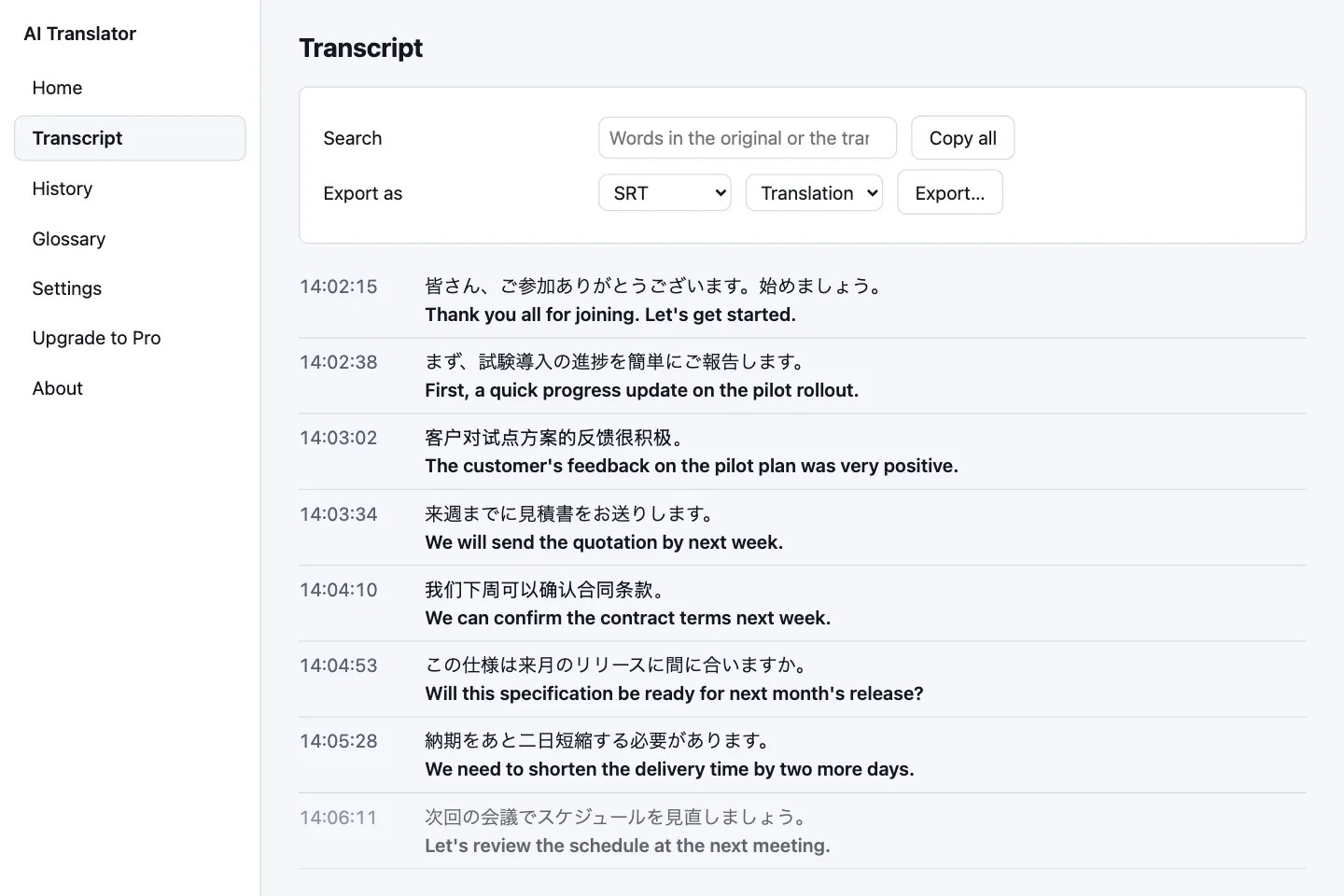
Open Transcript in the sidebar, or click Open the transcript on the Home screen. Each line has the time, the original sentence and the translation. A skipped segment shows “[segment skipped]” and a sentence that could not be translated is marked “not translated”.
- Search: type in the Search box (“Words in the original or the translation”). With no match the app says “No sentence matches your search.”
- Copy all: puts the whole transcript on the clipboard as plain text (the same layout as the TXT export below) and says “Copied to the clipboard.”
The transcript only keeps the latest session.
It lives in the app’s memory, and starting a new session replaces the old one. To keep it, copy it, export it, or turn on history before you start the next session. The subtitle bar keeps only the latest 1000 sentences, while the transcript keeps every sentence of the session.
Turn on history (Pro)
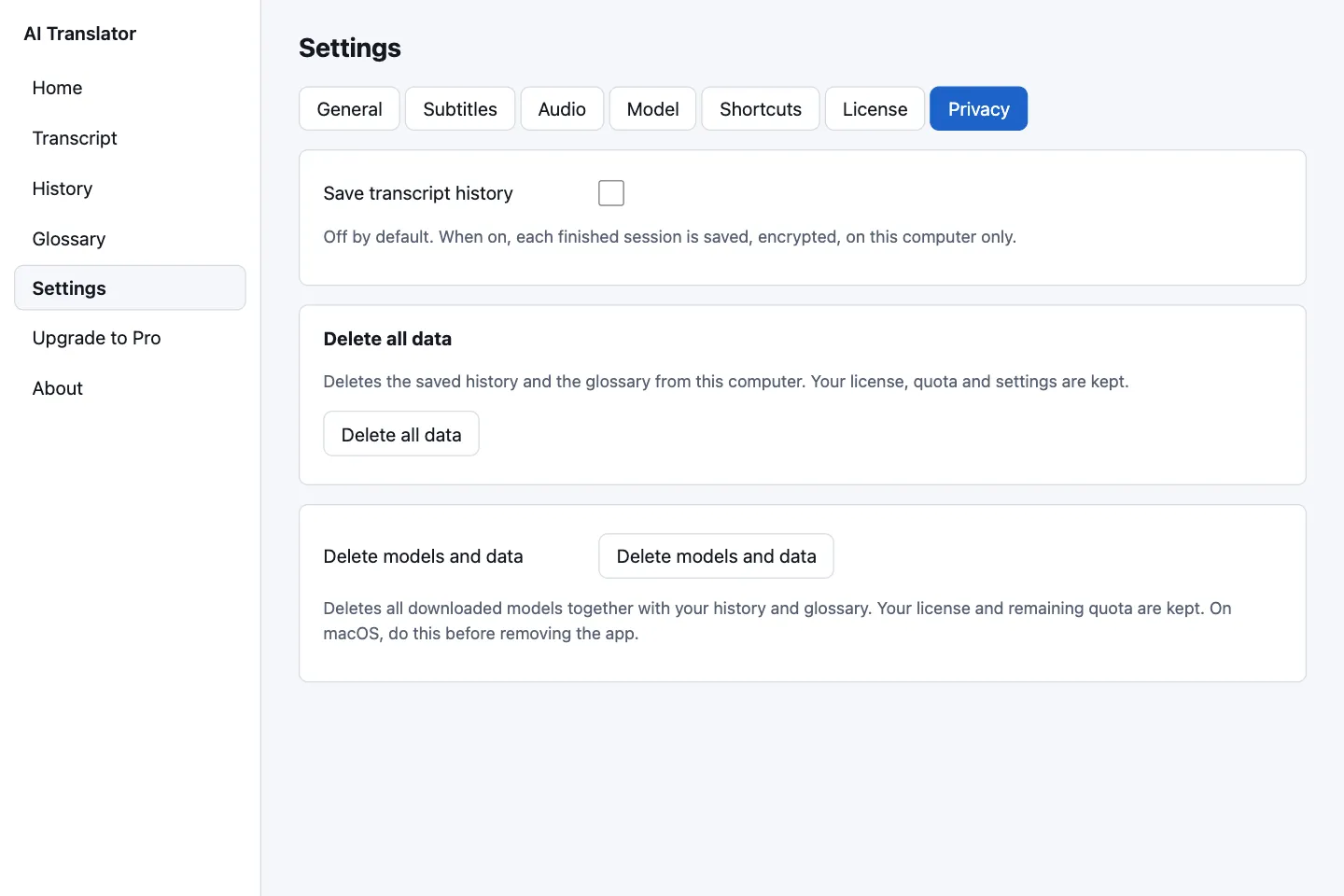
- Open Settings › Privacy.
- Switch on Save transcript history. On the Free trial the switch is locked and reads “Saving history is a Pro feature.”
- Translate as usual, then click Stop. The app saves the session transcript; a session with no sentences is not saved. Quitting the app, shutting down or logging out mid-session also saves it as if you had pressed Stop, but a sudden kill (Force Quit, power loss) loses that session.
- Open History in the sidebar.
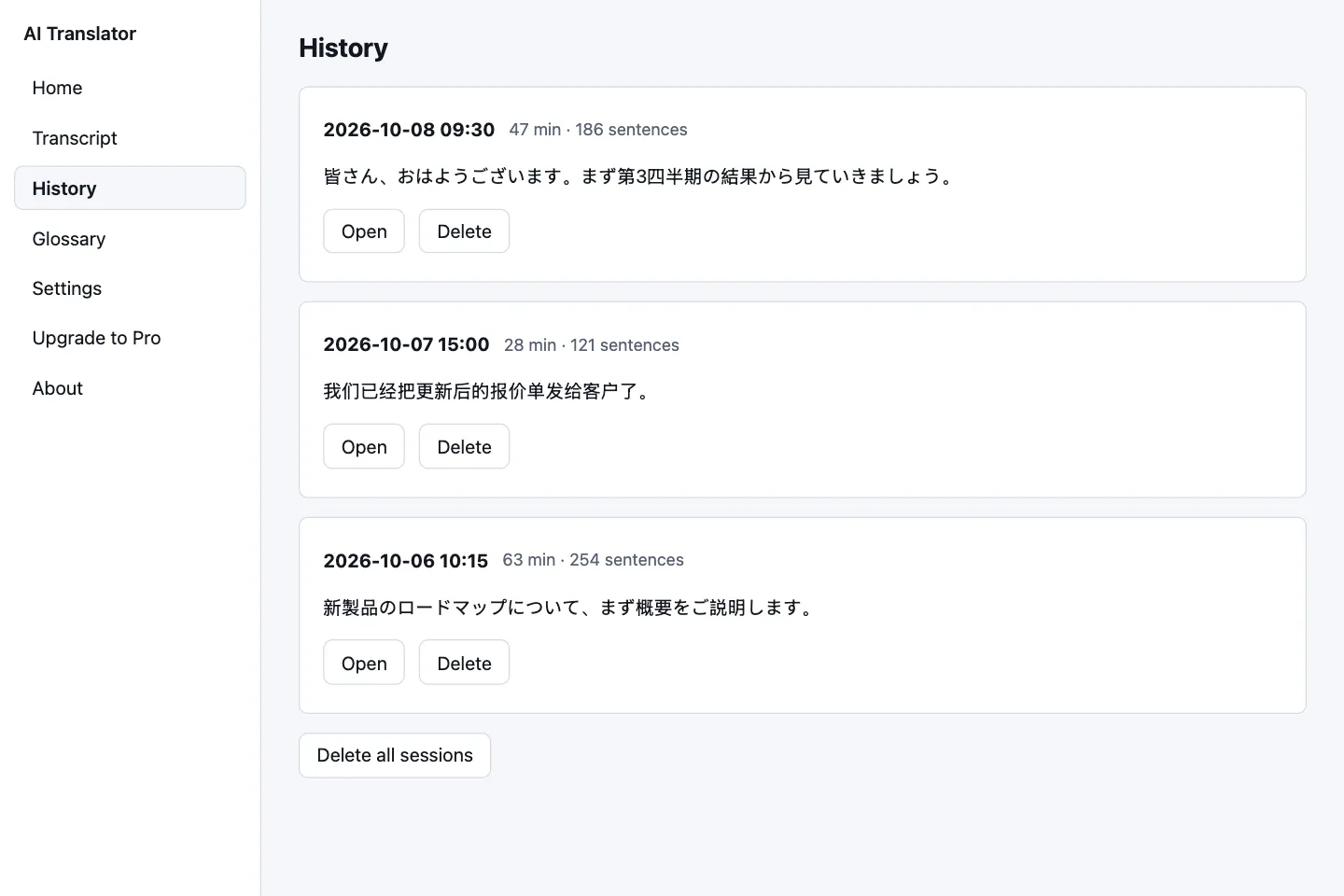
Each session in History shows the date and time, its length and sentence count (“47 min · 186 sentences”), a preview, and Open and Delete buttons, newest first. Open lets you view, search, copy and export it just like the Transcript; Back to the list returns. If saving is off, the screen says “Saving history is off, so new sessions are not saved.”
History and the glossary share one SQLite database, encrypted with SQLCipher and kept only on your computer. The key is a random value the app creates on your machine and stores in Keychain (macOS) or Credential Manager (Windows). If you refuse when the system asks for access, the app says “Could not open the history and glossary data…”; allow it and try again. More in data and security.
Export to TXT, SRT or Markdown (Pro)
- Open Transcript, or open a session in History.
- Under Export as, pick TXT, SRT or Markdown. For SRT, a second menu appears next to it for the text in the file: Translation or Original.
- Click Export… and choose where to save. The app suggests a name like
transcript-2026-10-02-1405.txt(the date and time the session started). When done it says “Saved to …”.
On the Free trial the Export… button is locked, with the note “Exporting to a file is a Pro feature. Copying works on every plan.” and an Upgrade to Pro button.
| Format | Content and time on each line |
|---|---|
| TXT | One block per sentence: [time] original, then → translation on the next line, separated by a blank line. The time is your computer’s clock time when the sentence began (HH:MM:SS). |
| SRT | A number, “start --> end”, then one line of text: the translation or the original, as you chose. Times are counted from the start of the session (HH:MM:SS,mmm). |
| Markdown | A heading with the start date and time, then a three-column table: time, original, translation. Times are your computer’s clock time. |
Using an SRT file with a video
The time on each SRT line is counted from the start of the session, so 00:00:00 is the session start, not automatically the start of your video. AI Translator does not record the meeting, so it cannot know when your video began; if the video is offset from the session, shift the times in your player or subtitle editor. In a Translation SRT, a sentence with no translation (already in your language, or not translated) shows the original text.
Delete sessions and all data
- Delete (in History): removes one session.
- Delete all sessions: the app asks “Delete every saved session? This cannot be undone.” and you click Delete.
- Delete all data (Settings › Privacy, every plan): removes the saved history and the glossary from this computer; your license, quota and settings are kept. The app asks you to confirm, then says “History and glossary deleted.”
- Delete models and data (same screen): also removes the downloaded models. On macOS, do this before removing the app.
Deleting cannot be undone. Next, see the glossary guide or troubleshooting.