
No subtitles, or no audio heard
Cause: macOS has not granted the permission, and gives no error: the app just receives silence.
Fix: Click Open System Settings, turn on AI Translator under Privacy & Security › Screen & System Audio Recording › System Audio Recording Only, then click Start again. See the audio permission guide.
Cause: Nothing is playing, the audio source is wrong, or the app could not open the source.
Fix: Turn the meeting sound on. In Settings › Audio click Refresh list, choose the source again and click Start again. If it persists, send your logs.
Cause: You chose Only {app name} and that app is silent.
Fix: Make the app play sound (translation resumes at once), or choose Whole system, except this app (from the next session).
Cause: The bar stays hidden when the app opens until you click Start, or you hid it with the ✕ button or the shortcut.
Fix: On the Home screen, under Subtitle bar, click Show; or press ⌃ + ⌥ + H; or choose “Show subtitles” in the menu bar. If it is locked, unlock it with ⌃ + ⌥ + L.
Cause: Another app already holds that key combination.
Fix: In Settings › Shortcuts click Change and press a new combination with at least one of Ctrl, Alt or Cmd/Win (Shift alone is not enough).
Subtitles late, missing or stopped
Cause: The computer cannot keep up with the speech, or the GPU failed so the app moved to the CPU.
Fix: Close heavy apps. In Settings › Model select the Lite pack and click Use this pack (if it is not downloaded yet, click Download and use); the new pack is used from the next session.
Cause: The translator or the recognizer failed. The app restarts them on its own; after more than 5 failures in 10 minutes it stops translating.
Fix: Click Stop, then Start. If the app says part of it is missing or damaged, reinstall AI Translator. If it repeats, send your logs.
Models, install and macOS
Cause: No connection, or the network blocks the download.
Fix: Check your network, then click Try again.
Cause: The connection dropped, or a file failed its integrity check.
Fix: Click Resume. If the app says “The model is damaged. Please download it again.”, click Check and download again in Settings › Model.
Cause: The disk needs the download size plus 1 GB free (about 2.5 GB for Standard, 1.3 GB for Lite).
Fix: Free up disk space, or choose the Lite pack.
Cause: Below the minimum: a Mac with Apple Silicon and 8 GB of RAM.
Fix: Use a computer that meets it. See the requirements on the download page.
Cause: The macOS build is ad-hoc signed and not yet notarized by Apple.
Fix: Click Done, open System Settings › Privacy & Security, scroll to the bottom and click Open Anyway next to AI Translator. See installing on macOS.
Cause: Normal for the ad-hoc signed build: your login password a few times and recording permission once.
Fix: Enter your password, click Always Allow and allow the recording permission.
License, quota and trial
Cause: You used the 30 minutes for today (Free) or the 50 hours of the cycle (Monthly).
Fix: Wait until the reset time on screen, or renew or change plan.
Cause: Free is a 10-day trial per computer; reinstalling does not restart it.
Fix: Buy Monthly or Yearly to keep translating.
Cause: The trial could not register without a connection, or a paid plan went over 14 days without a license check.
Fix: Connect to the internet. If this computer has not registered its trial yet, click Start again so the app registers it. For a paid plan, click Check now in Settings › License.
Cause: The key is held by two computers.
Fix: Remove the key from one computer, then click Try again: see how to switch computers.
Cause: The system clock was set backwards.
Fix: Set the correct time (preferably automatic) and connect to the internet so the app can check it.
Cause: A mistyped key; too many computer changes; or an installer that is not the official one.
Fix: Paste the key from your email again; contact support if the key is locked; download the official build again from the link we sent you or from aitranslator.io.vn.
Send logs and report a problem
Open About › Open log folder to find app.log (on macOS: the com.aitranslator.desktop folder inside ~/Library/Logs/). Logs stay on your computer and contain no audio, no transcript text and no full license key. The app never sends anything by itself: you decide whether to send them to support (support@aitranslator.io.vn).
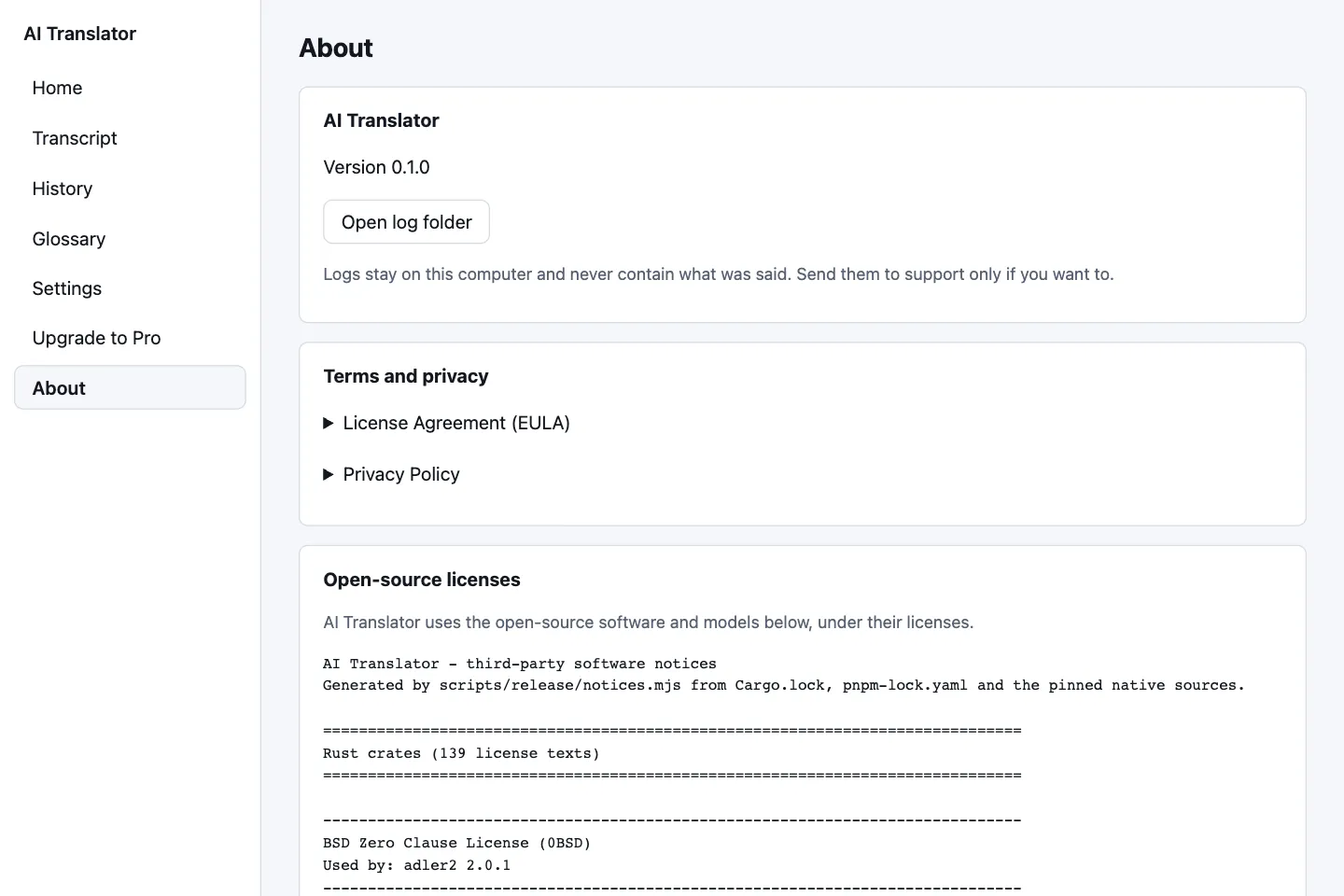
Contact support when a problem repeats after you followed the tables, when a key is locked or revoked, or when a payment goes wrong. Include:
- The app version (About › “Version …”), the macOS version, the chip (for example MacBook Air M2) and the RAM.
- The model pack (Standard or Lite, in Settings › Model) and your license plan.
- The message exactly as shown, or a screenshot, the meeting app you use and what you just did.
- The order number for payment issues;
app.logif you agree.
Quick answers
I closed the window but the app keeps running. How do I quit?
Closing the window only hides the app in the menu bar. Choose Quit from the AI Translator menu bar icon; ⌘Q does not quit it.
Does reinstalling the app lose my key or restart the 10-day trial?
No. Reinstalling on the same computer does not count as a new computer, and the 10-day trial is tracked per computer, so it cannot be restarted.
Do the logs reveal what was said in my meeting?
No. Logs contain no audio and no transcript text, and the app never sends logs anywhere by itself.