
Translated subtitles for online meetings (Zoom, Teams, Meet, Zalo)
AI Translator shows live translated subtitles for Zoom, Microsoft Teams, Google Meet and Zalo PC calls by listening to the audio playing on your computer. There is no bot to invite, nothing for the host to switch on, and both speech recognition and translation run on your own machine.
- Works with
- Zoom, Microsoft Teams, Google Meet, Zalo PC
No bot, no plugin; any app that plays sound through your computer can be captured - Languages
- English, 中文, 日本語, 한국어, Tiếng Việt
One way, into the language you choose - Latency
- Median 0.76–1.03 seconds
Mac M4 Pro, Standard pack; slower machines will be slower - Platform
- macOS 14.2+ (Apple Silicon), beta
Windows 10/11: coming soon
Why are meetings in another language so tiring?
In a meeting held in a foreign language you listen and translate in your head at the same time, and it is easy to lose a point when someone speaks fast or uses a lot of jargon. The big meeting platforms offer built-in translated captions, but they are usually part of higher paid plans and process your audio in the cloud, and most third-party tools run in the cloud too. If your organization's plan does not include that feature, or you do not want meeting audio to leave your computer, you need another way.
AI Translator runs on the listener's side
- It captures the sound playing on your computer (on macOS you allow System Audio Recording; the microphone is not used; see how to grant the permission)
- It splits the audio into sentences, then recognizes and translates the speech with models running on your machine
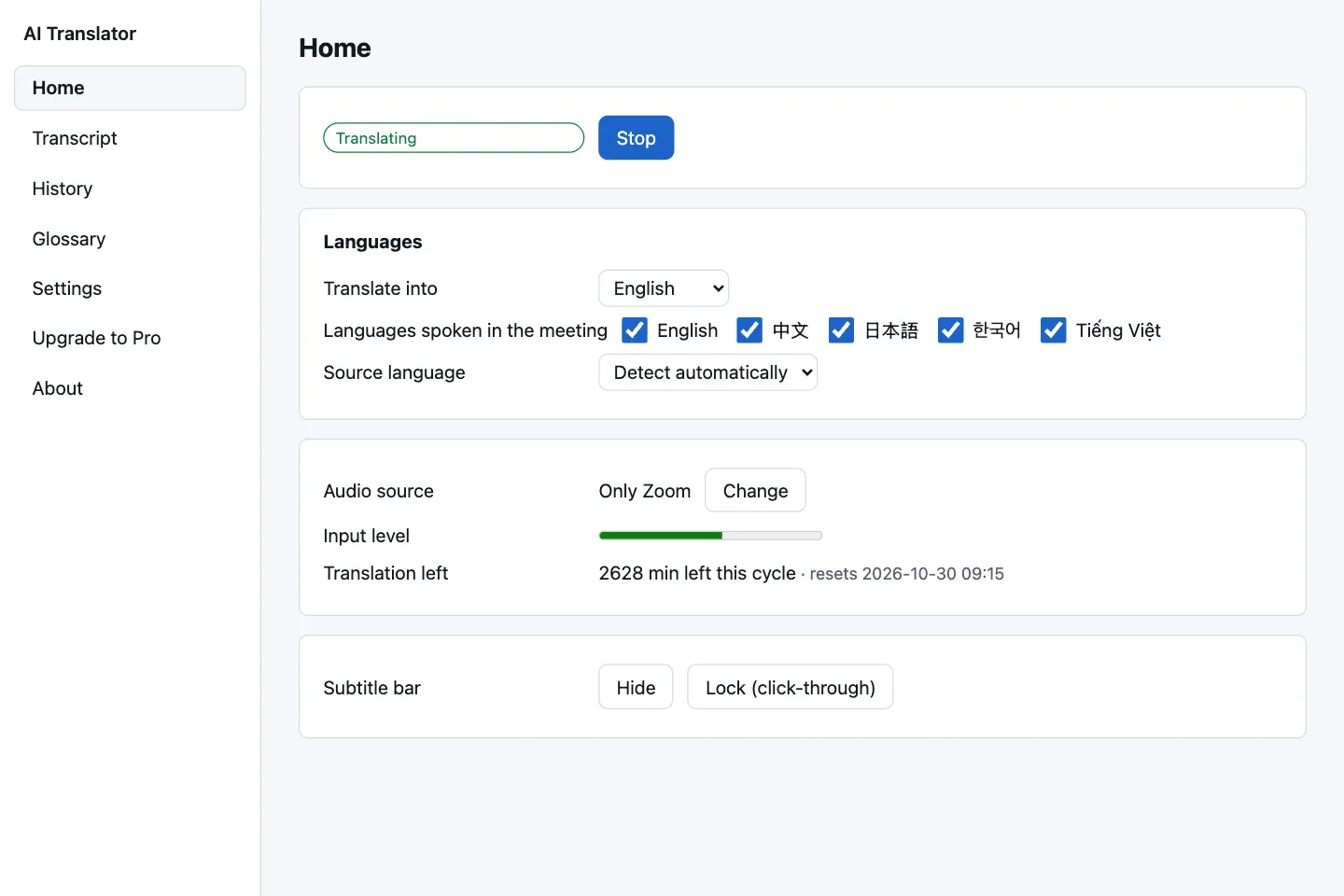
- It shows the translation on a floating subtitle bar that never takes focus from the meeting app, so you can keep typing in chat
- Nobody else has to do anything: no bot in the room, no captions for the host to enable
Five minutes of preparation
Lock the source language if you know it
On the Languages card, set Source language to the language of the meeting instead of Detect automatically; the app is less likely to guess wrong on short sentences. If several languages will be spoken, keep Detect automatically and tick only the ones that may come up.
Add proper names to the glossary (Pro)
Enter partner names, product names and abbreviations with the translation you want, up to 500 entries. They are hints to the translator, not a guarantee. See the glossary guide.
Place the subtitle bar and lock it
Drag it where it does not cover the speaker, usually just under the video; set the font size (14–48 px), colors and opacity in Settings › Subtitles. Click Lock (click-through) so the mouse passes through the bar.
Listen to Zoom only (macOS)
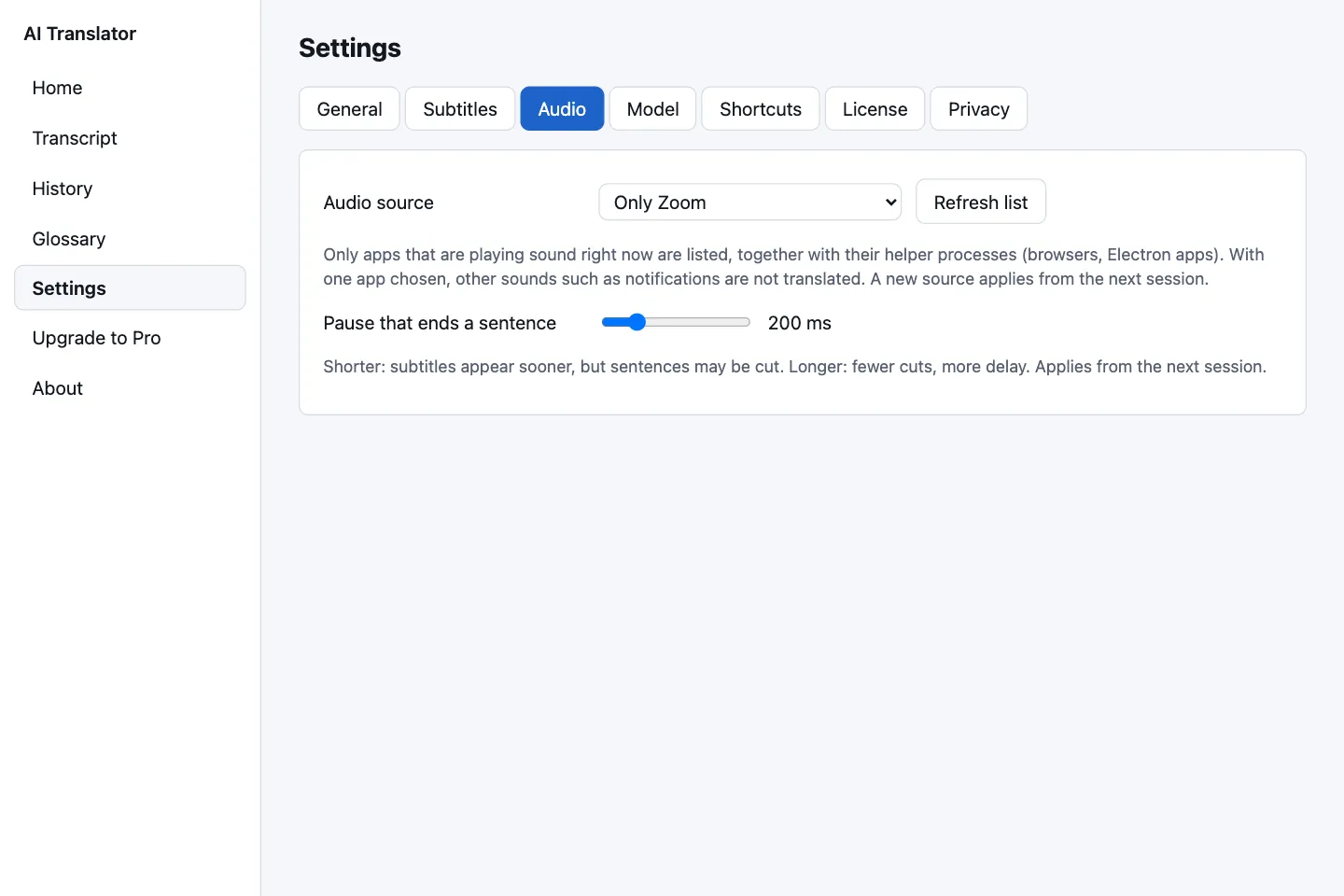
The list in Settings › Audio only shows apps that are playing sound, so join the call, then click Refresh list. Choose the Zoom entry (it reads Only {app name}) so notification sounds and other videos are not translated. For Meet in a browser, choose the browser (its other tabs are still heard). It takes effect from the next session.
Stay in control without leaving the call
Press Start before the meeting begins so the models finish loading (it takes a few seconds); silence does not count against your quota.

| Action | macOS |
|---|---|
| Start or stop translating | ⌃ + ⌥ + T |
| Show or hide subtitles | ⌃ + ⌥ + H |
| Lock or unlock | ⌃ + ⌥ + L |
| Scroll up (older sentences) | ⌃ + ⌥ + PageUp |
| Scroll down (newer) | ⌃ + ⌥ + PageDown |
- Missed a sentence: scroll up to read it again (the last 1000 sentences are kept); the Latest button brings you back, and the scroll keys work even when the bar is locked.
- Faded text is a provisional subtitle that is replaced when the speaker carries on. Keep Show the original text above the translation on (it is on by default) to double-check names and numbers.
- Hide it fast with the shortcut, or with the ✕ button when you hover over an unlocked bar.
On Windows the shortcuts use Ctrl+Alt instead of ⌃⌥. Change them in Settings › Shortcuts if they clash with your meeting app. We have not checked whether the subtitle bar appears in the part of your screen you share, so test it first, or hide the bar while sharing. See the subtitle bar and shortcuts.
Keep what you need
After you press Stop, press Open the transcript to see every line with its time, original text and translation; there is a Search box and a Copy all button on every plan.
Exporting to TXT, SRT or Markdown and History are Pro features (see pricing). History is off by default; turn it on in Settings › Privacy and each session is saved on your computer, encrypted. The app does not save the transcript to disk on its own, and it is a text transcript, not meeting minutes. See history and export.
Apps and devices tried so far
Using a separate audio-capture test tool (not the app's full recognition and translation loop), we tested system-audio capture on macOS 26.6.2 with Zoom (app), Google Meet in Chrome, Safari and Edge, Microsoft Teams (new app) and Zalo PC, through the speakers, wired headphones and AirPods.
This was internal testing, confirmed by ear by the tester. It is not a formal acceptance test on the release build for each app and macOS version (14.2 is the minimum). Windows is not released yet, so there is no Windows result to report.
Privacy and notifying other participants
AI Translator captures the sound playing on your computer, which includes other people's voices. The audio stays in memory: it is not written to disk and not sent over the network (we checked with a proxy on macOS). The app does not record meetings. See data and security.
Other participants will not be told.
Because there is no bot and the app does not connect to the meeting platform, the other participants see no notice that you are using AI Translator. If the law or your company's rules require it, you are responsible for telling the other participants that you use a translation tool. The Terms of use (section 6) say the same. We do not give legal advice.
What to keep in mind
- Latency: median 0.76–1.03 seconds and p90 0.94–1.34 seconds, measured on a Mac M4 Pro with 24 GB, Standard pack. Less powerful machines will see higher latency: we have not measured an M1 Mac, and on one Windows laptop with integrated graphics the Standard pack missed our target. See the measurement conditions.
- Quality varies with the language and how clear the audio is. The Lite pack transcribes less accurately than Standard in Vietnamese, Japanese, Korean and Chinese. We have not measured accuracy over real Bluetooth headsets.
- Translations can be wrong, especially jargon and proper names. Do not rely on them for important decisions without checking with a qualified person.
Try it on your own call
Start with the free 10-day trial, 30 minutes a day. No card, no account.